#
Customizing
When using NexGEN CRM forms, you are provided with two snippets of code to get started; the global code snippet and the individual form code snippet
#
Global Form Snippet
The global form snippet should be pasted within the <head> of your websites html, and should be included on all pages on the website. This code only needs to be included once regardless of how many form codes you install.
<script src="https://storage.smarttouchinteractive.com/source/forms/smarttouch.js"></script>
<script>smarttouch.visistat(######);</script>
###### is a numeric id assigned to your account and is shown in the form builder snippet. Not all accounts will have the visistat script included.
#
Individual Form Code Tag
<smarttouch-nexgen
	form="####"
	client="####"
></smarttouch-nexgen>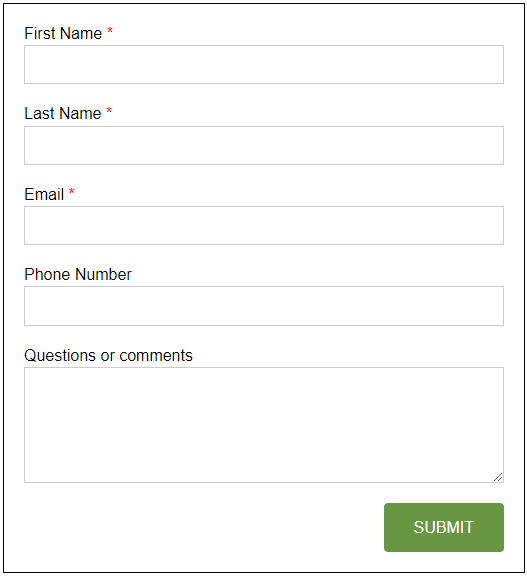
#### is a numeric id for the form and client parameters, and is shown in the form builder snippet.
#
Customizing Form Code Tag
The form code tag includes optional parameters which you can use to change the layout of the form displayed on your website.
#
Change width of individual fields
Forms are generated in a grid layout with 12 columns. By default, the width of each field is 12 columns wide. To specify an alternative width for each field, you can use the span# parameter, where # is the number of columns a field should occupy. Using the spanmobile# parameter, you can specify an alternative column width for mobile. The value is a comma separated list of field IDs. In the example below, we will take the fields First Name (1), Last Name (2), Email (7), and Phone Number (4) and have them occupy 6 columns on desktop, and 12 columns on mobile.
<smarttouch-nexgen
	form="####"
	client="####"
	span6="1,2,7,4"
	spanmobile12="1,2,7,4"
></smarttouch-nexgen>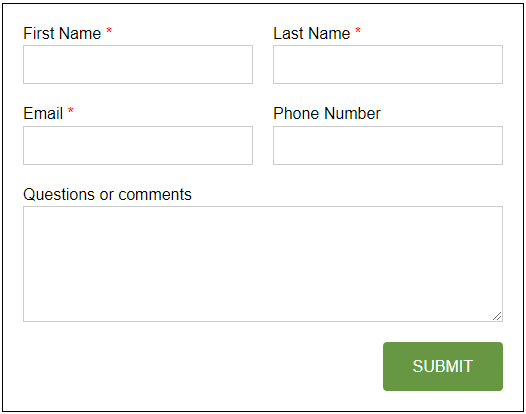
#
Use placeholders instead of Labels
Adding the placeholders parameter will display the form fields using placeholders instead of labels. Keep in mind, that some fields will still have labels in place of placeholders (date & time fields).
<smarttouch-nexgen
	form="####"
	client="####"
	span6="1,2,7,4"
	spanmobile12="1,2,7,4"
	placeholders
></smarttouch-nexgen>
#
Change the label of the submit button
The submit parameter can be set to a text value which will replace the form's submit button label.
<smarttouch-nexgen
	form="####"
	client="####"
	span6="1,2,7,4"
	spanmobile12="1,2,7,4"
	placeholders
	submit="Contact Us"
></smarttouch-nexgen>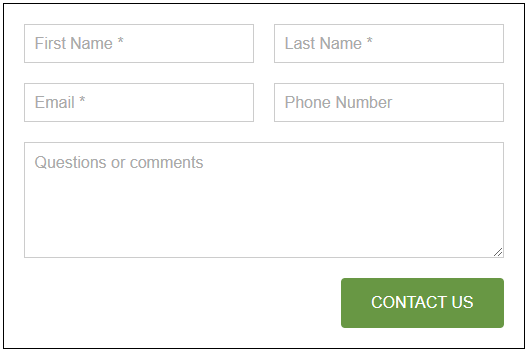
#
Add a disclaimer to the form
The disclaimer parameter allows you to set a disclaimer which will appear next to the submit button.
<smarttouch-nexgen
	form="####"
	client="####"
	span6="1,2,7,4"
	spanmobile12="1,2,7,4"
	placeholders
	submit="Contact Us"
	disclaimer="By submitting this form, you agree to receive marketing communications from SmartTouch Interactive. You may unsubscribe at any time."
></smarttouch-nexgen>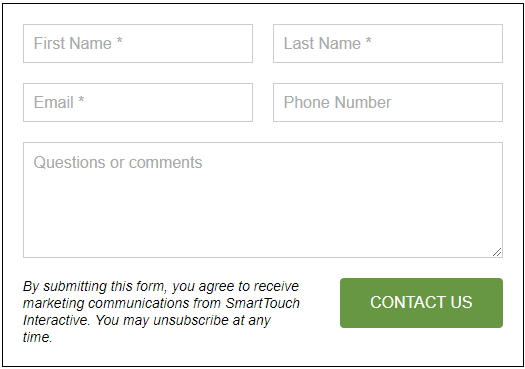
#
Callback Functions
The onsubmit, onsuccess, onfail, onchange, onload parameters can be set to a function name will be called whenever the trigger has occured. The function includes the form DOM element as the passed function parameter, with the exception of the onchange callback, which also passes the field element that has changed.
<smarttouch-nexgen
	form="####"
	client="####"
	span6="1,2,7,4"
	spanmobile12="1,2,7,4"
	placeholders
	submit="Contact Us"
	disclaimer="By submitting this form, you agree to receive marketing communications from SmartTouch Interactive. You may unsubscribe at any time."
	onsubmit="form_submit"
	onsuccess="form_success"
	onfail="form_fail"
	onchange="form_onchange"
	onload="form_onload"
></smarttouch-nexgen>
window.form_submit = (form) => {
console.log('Form is being submitted');
}
window.form_success = (form) => {
console.log('Form submission succeeded');
}
window.form_fail = (form) => {
console.log('Form submission failed');
}
window.form_onchange = (field, form) => {
console.log('A field in the form has changed');
}
window.form_onload = (form) => {
console.log('Form has finished loading');
}
#
GA4 Event Tracking via Google Tag Manager
If GTM is detected, the form will automatically send a GTM event (via DataLayer), which can be used in GTM for tracking a form submission. There are 4 parameters that can be set to add additional tracking parameters to the datalayer object. builder, community, floorplan, and spec. The label paramater can be used to customize the event label. The location parameter can be used to customize the location of the form.
<smarttouch-nexgen
	form="####"
	client="####"
	location="Landing Page"
	label="Contact Us Form"
	builder="SmartTouch Homes"
	community="SmartTouch Grove"
	floorplan="The Duchess"
	spec="123 Main St"
></smarttouch-nexgen>
dataLayer.push({
event: 'GA4 Event', // Does not change
stEventName: 'Form Submission', // Does not change
stLabel: 'Contact Us Form', // Defaults to form name from CRM if 'label' parameter not included
stLocation: 'Landing Page', // Defaults to 'Website' if 'location' parameter not included
stAbsoluteTracking: 'Direct', // Defaults to 'Direct' when SmartTouch absolute tracking is not triggered
stBuilder: 'SmartTouch Homes', // Defaults to empty string if 'builder' parameter not included
stCommunity: 'SmartTouch Grove', // Defaults to empty string if 'community' parameter not included
stFloorplan: 'The Duchess', // Defaults to empty string if 'floorplan' parameter not included
stSpec: '123 Main St' // Defaults to empty string if 'spec' parameter not included
});